
Appearance
How to Activate Your Revive Social Pro License
📝Note: You need to keep the Revive Social ( free ) in your plugin's directory ACTIVATED for the pro version to work.
In this article, we will present to you how to download the pro version of the plugin after purchasing it, the steps to install and use the pro version of Revive Social, and how to use the license key in case it is not automatically activated.
Download and Install
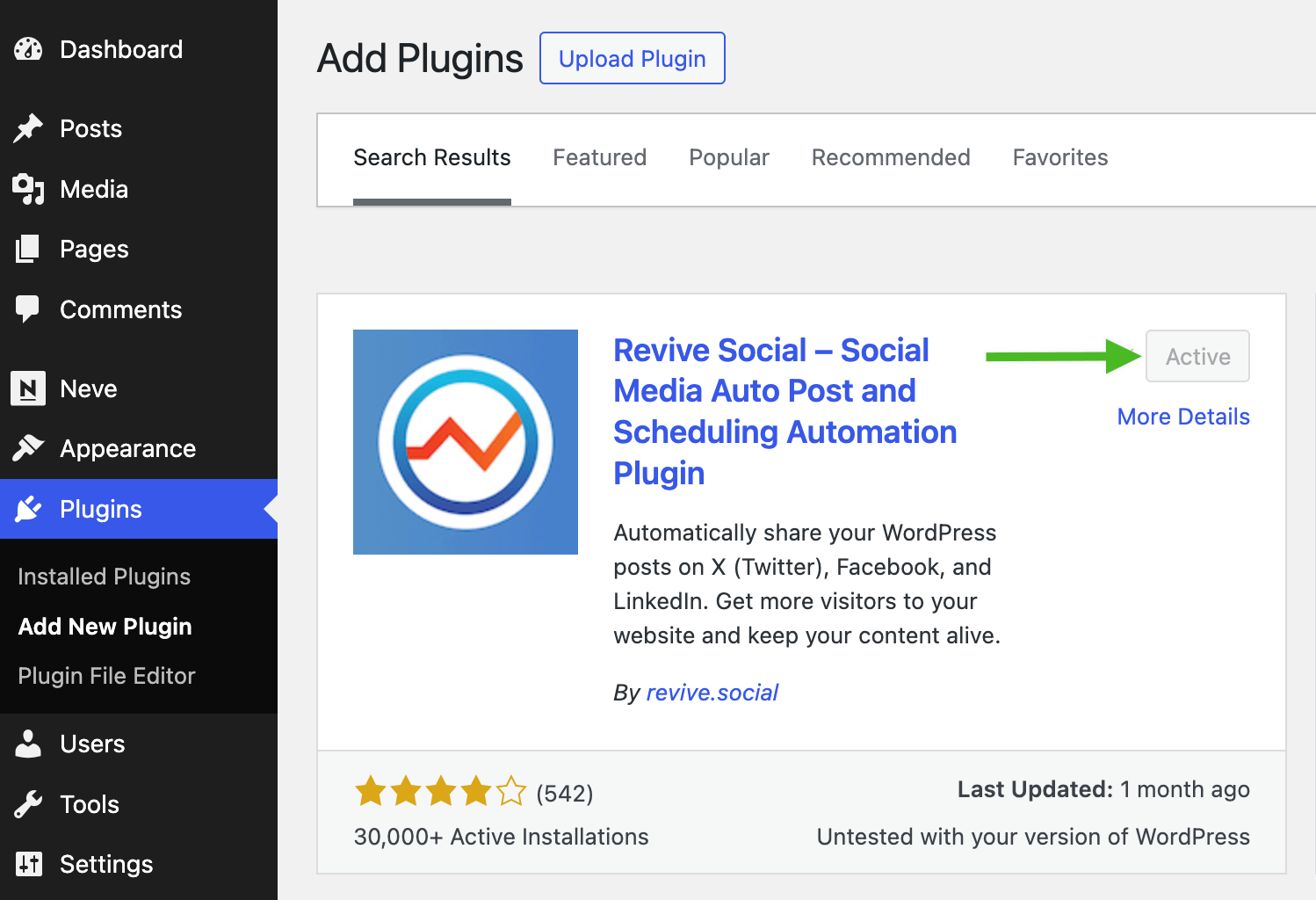
1. First, install the free version of the plugin in Dashboard > Plugins > Add New and search for Revive Social, and install the plugin.
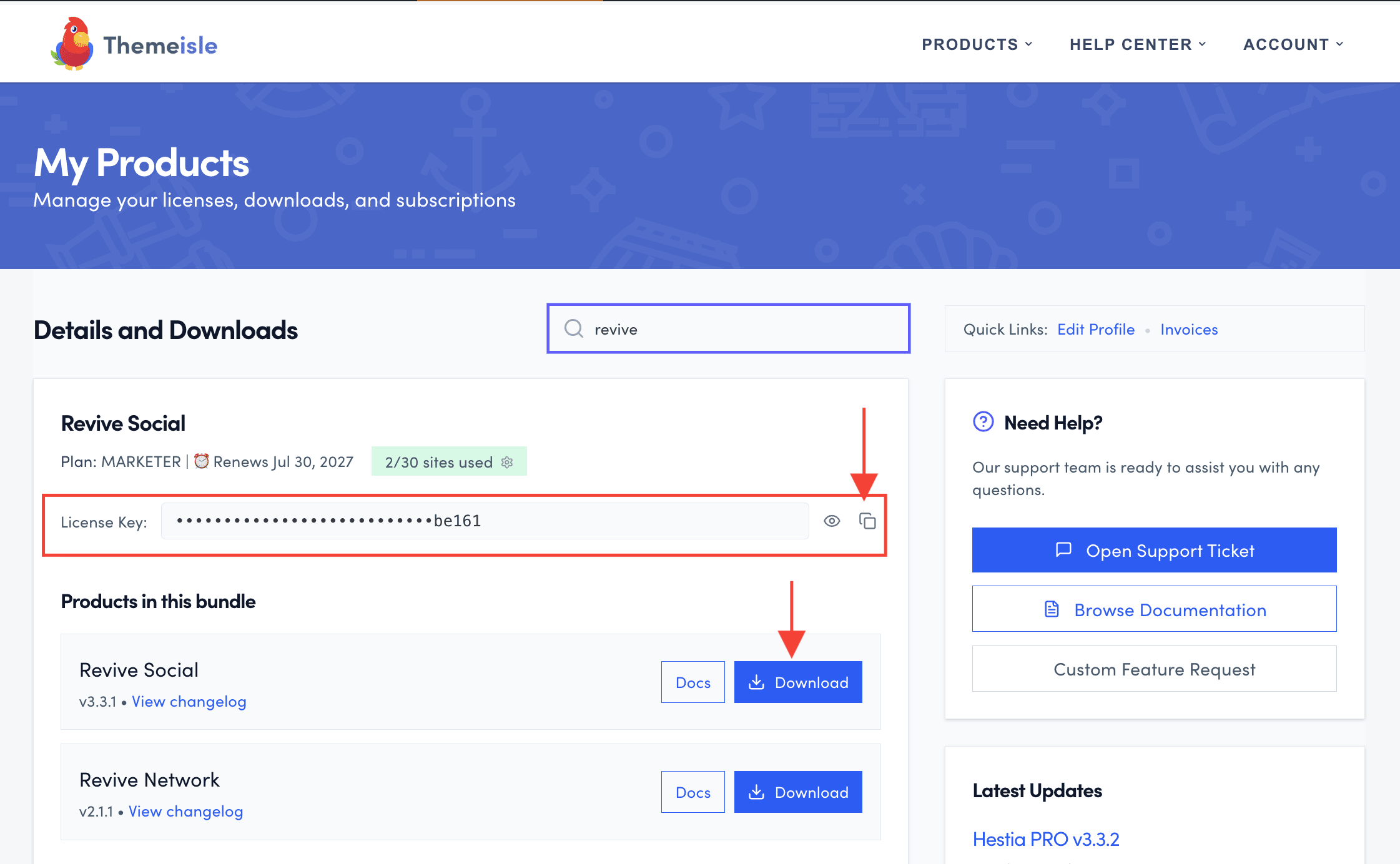
2. Navigate to Themeisle Purchase History and search for the Revive Social plugin, then click on the Download button.
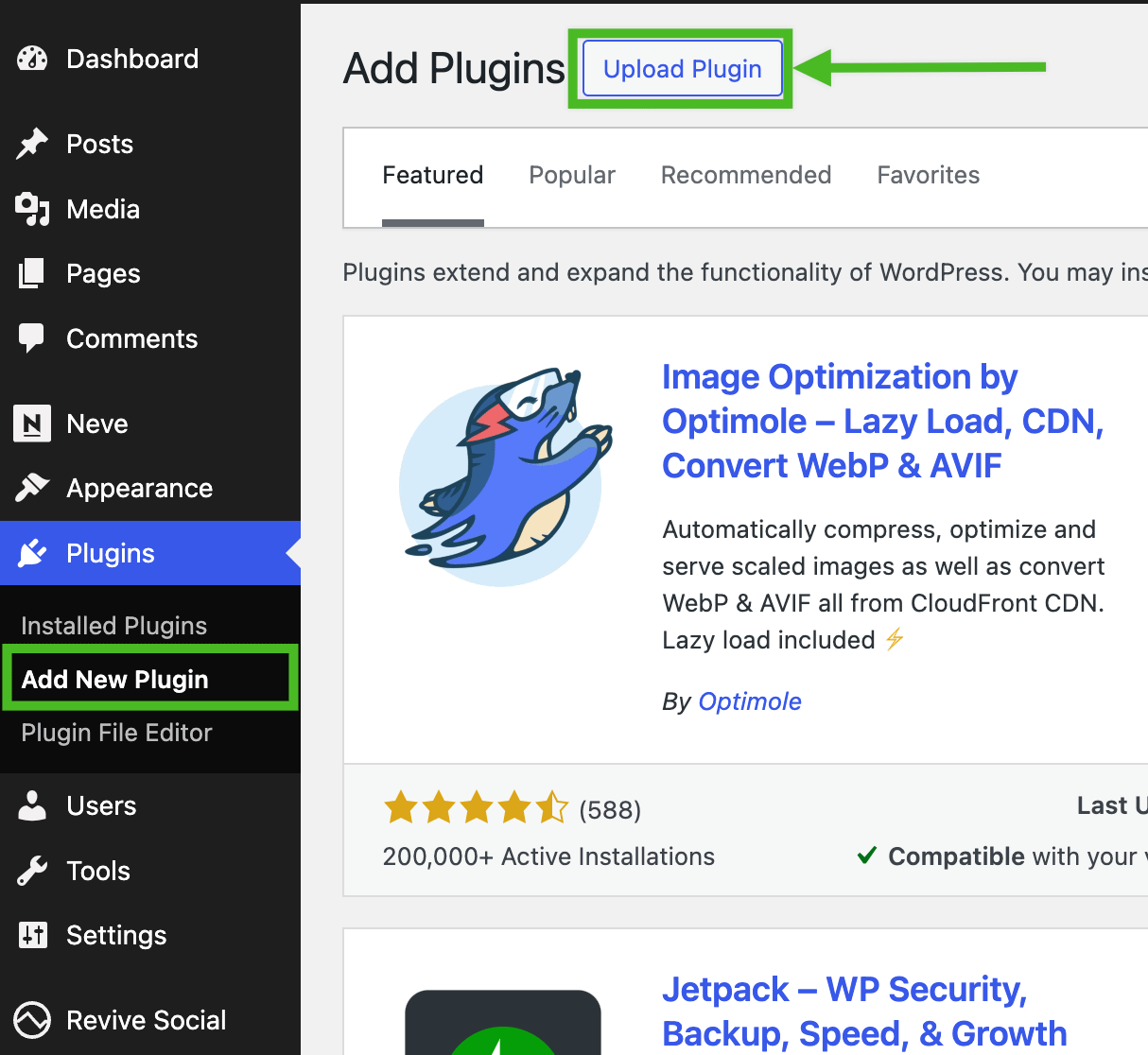
3. Open your WordPress Dashboard and visit Plugins > Add New.
4. Click on the Upload Plugin button.
5. Select the downloaded plugin from your File Explorer and click on Install Now.
6. After Successful Uploading of the plugin, click on Activate Plugin.
Then, you should see both free and pro versions in the Plugins area:

Find your license key
Usually, the license key is automatically activated once you download the pro version of the plugin. However, sometimes it may not. In this section, we will present where you can get your license key and how to use it.
1. Navigate to the Themeisle store and search for Revive Social.
2. Once it appears, click to copy the license key.
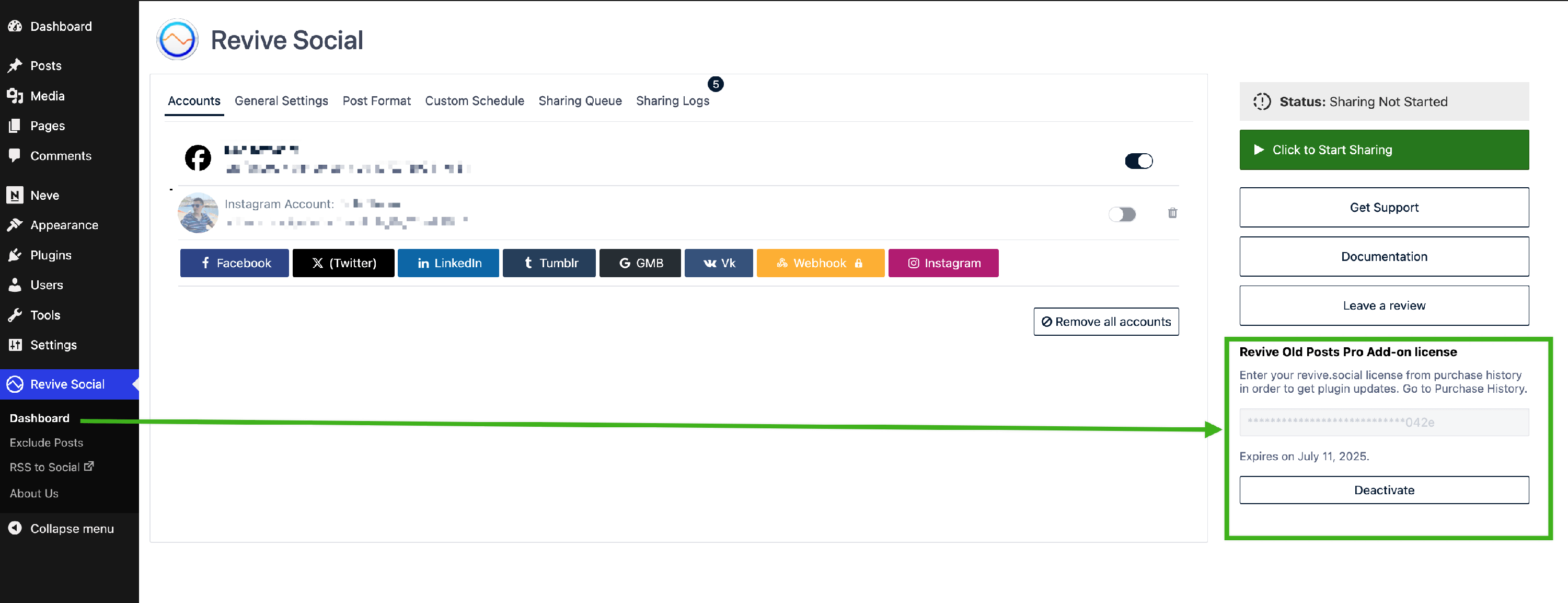
3. In your WordPress dashboard, go to Revive Social > Dashboard.
4. In the sidebar, paste your license key into the license field.
5. Click on Activate.
📝 Note: To find out more about Revive Social Pro, check the primary documentation of the plugin here.
If you still have issues, then write us so we can further investigate.