
Appearance
How to share posts as image posts to social accounts
Revive Social comes with Media Sharing capabilities that allow you to share images from your media library to social media. However, it's also possible to share your posts as image posts instead of article posts.
📝 Note: For X (Twitter), image posts are only available when the account is connected with your own X Developer API keys. For instructions on connecting X with your own keys, see How to share posts to X (Twitter) using Revive Social.
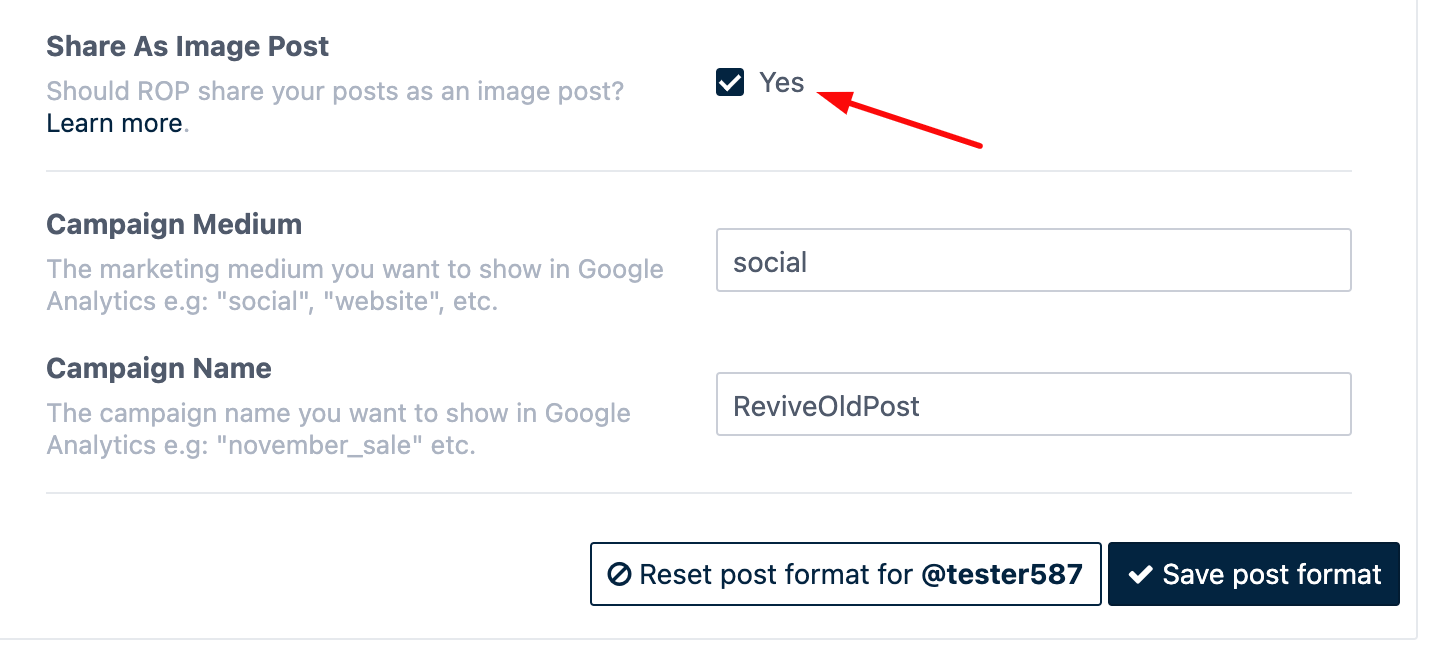
To ensure posts share as standalone images instead of article posts check the Share As Image Post option on the Post Format tab for the account where you wish to have standalone image posts:
The result (with Include Link option also checked), clicking on the image would not open a link to the website, it would instead open on the social network:

Leaving this option unchecked would share the post to your social accounts as an Article post where clicking anywhere on the post preview would open the link to your website, example:

Configure a clickable article preview
If clicking the image on X opens only the image, your account is sharing a native image post instead of a clickable article preview.
To share a standard clickable article preview, configure the account in Revive Social > Dashboard > Post Format:
- Select the X account from the account list.
- Enable Include Link.
- Disable Custom Field (URL).
- Disable Share As Image Post.
- Click Save.
If you intentionally use custom URL fields, see How to use custom fields (Content + URL+hashtags) in Revive Social.
For Feedzy canonical URL conflicts and advanced URL override troubleshooting, see Fix Revive Social sharing the wrong URL for imported posts.
If the Post with Image option appears greyed out for your X (Twitter) account, see Fix 'Post with Image' greyed out for X (Twitter).