
Appearance
How to rollback to the previous version of Revive Social
If your Revive Social updated and the new version doesn't work there is an easy fix for this.
Before following these steps, we advise you make a back up of your current website in case something goes wrong. You can simply do a back up with a plugin, and for that we suggest Duplicator or Customizer Export/Import plugins.
You can use Rollback to previous version option and it will install and activate the previous version of the plugin. Here's how you can do that:
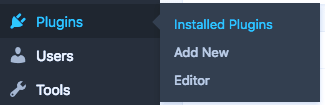
- Go to WordPress Dashboard > Plugins > Installed Plugins.
- Search for Revive Social* from the plugin list, and there you'll find Rollback to v
<PREVIOUS VERSION>.

Click on that option, and you'll be redirected to a page while the previous plugin is being installed and activated.
Return back to Plugins page, and you'll see the older version activated.
Also, please do contact us at: https://revive.social/support/ and we'll help you fixing the issue you are facing with the new version.