
Appearance
Working with Revive Social Sharing Queue
This is a Pro Feature! Purchase the Pro version of Revive Social here.
Purchasing the Revive Social Business or Marketer plans lets you manipulate the sharing queue before posts are sent out.
The feature comes with these options:
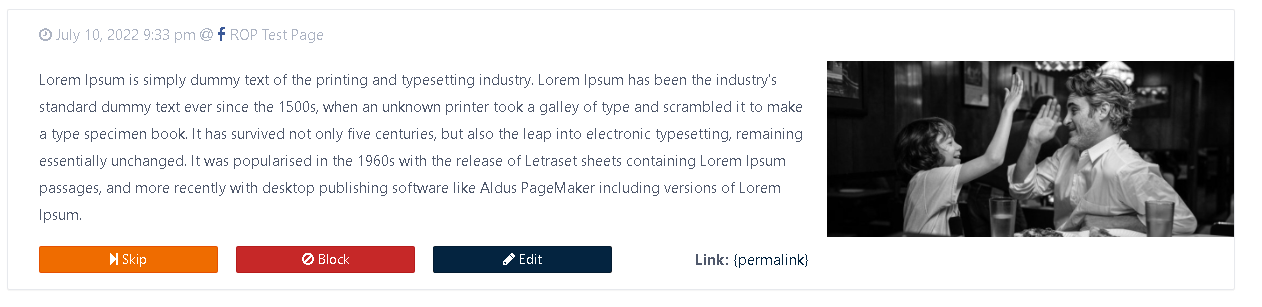
Skip: Let's you skip the post share so another can take its place
Block: Ban this post from sharing in the future
Edit: Edit the content and image to share
Note: The image field in the edit form only appears when Share As Image Post is enabled. Text content can always be edited regardless of the Share Content setting (Post Content or Post Title & Content). See the screenshot below for reference.
Edit Post: Open the original post or page in the WordPress editor. This link appears on each queued item that has a source post and opens the editor in a new browser tab, so you can change the underlying post or page instead of only the queued share. Use Edit to adjust the text or image of the share itself, and Edit Post to edit the original content.